

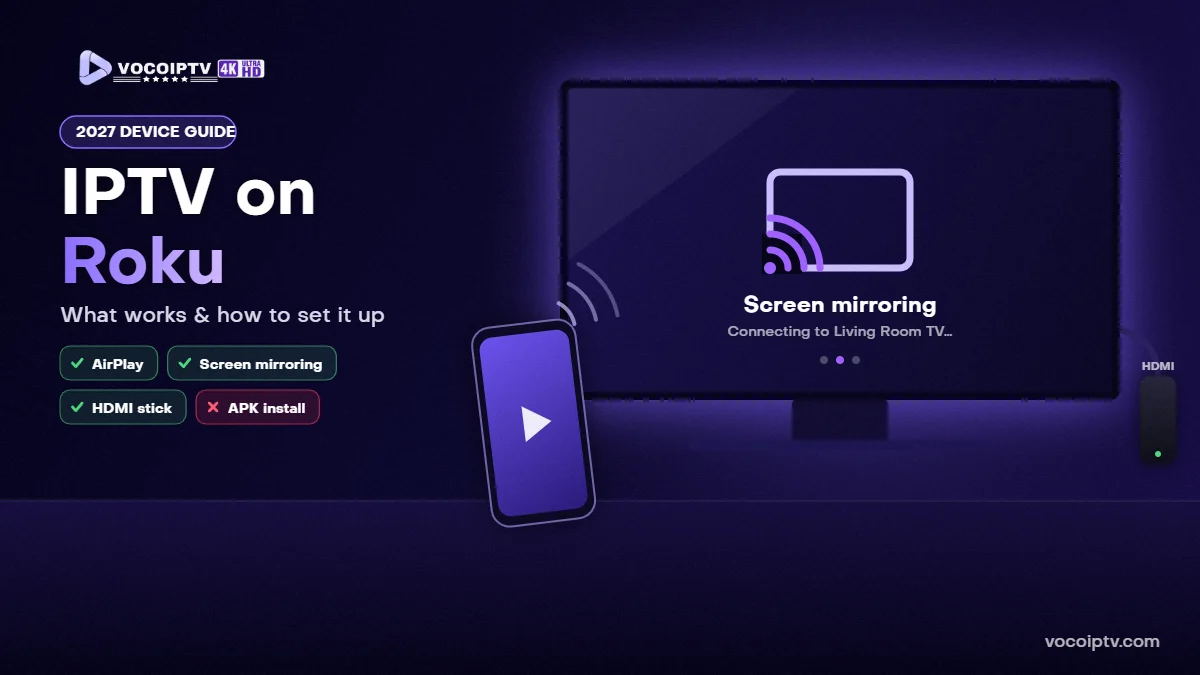
IPTV on Roku: What Works, What Doesn’t, and How to Set It Up in 2027
2027 planning guide · Facts checked November 16, 2026
QUICK ANSWER
Roku cannot install Android IPTV apps (APKs) and has no web browser, so IPTV on Roku works through a compatible player app from the Roku Channel Store, AirPlay on supported models, screen mirroring from a phone or PC, or an HDMI streaming stick such as a Fire TV Stick plugged into the same TV. Check that your Roku model and player support your login type, then test with a free 24-hour trial before you subscribe.
IPTV on Roku works through compatible streaming apps, AirPlay on supported models, or screen mirroring from a compatible device. Roku cannot install Android APKs and does not include a web browser. Before buying a subscription, confirm that your Roku model, playback app and provider support the same setup, then test playback.
This guide explains your options in the USA without promising that an unverified player or playlist will work. App availability and features can change before 2027; check the current Roku listing and your device settings before following any setup instructions.
A streaming player is separate from a content subscription. Confirm device support, app charges, connection limits and content authorization. A player accepting your login does not establish that a service has distribution rights.
IPTV on Roku: What Actually Works?
The right method depends on your Roku model and the service you want to watch. Start with a provider’s supported Roku app where available. If there is no supported app, investigate AirPlay or screen mirroring before purchasing additional hardware.
1. A compatible app in the Roku Streaming Store
Look for the service’s official Roku app or a player whose current listing explicitly supports your subscription’s format. Do not assume every app labeled “IPTV” accepts an M3U playlist or Xtream Codes login. Read the developer’s instructions and distinguish player activation fees from subscription charges.
For VOCO IPTV, ask support to confirm your exact model and proposed app first. This article does not guarantee a native VOCO Roku app or endorse an unverified third-party listing.
2. AirPlay from an iPhone, iPad or Mac
Supported Roku models can receive AirPlay from Apple devices. This may let you send video from a compatible playback app to the television. Support depends on the Roku model, software and source app; protected video or app restrictions may prevent playback.
3. Screen mirroring from Android or Windows
Compatible Android phones and Windows computers can mirror their display to supported Roku devices. Support varies by hardware: a phone having a casting button does not prove Roku compatibility. Google Cast and Roku screen mirroring are different technologies, so check the manufacturer’s wireless-display support.
4. A separate streaming device connected by HDMI
If your service supports Apple TV, Fire TV or another device more directly, connect that device to an available HDMI input on your television. Playback then runs on the external device rather than inside Roku OS. Confirm the app and subscription requirements before buying hardware.
How to Set Up IPTV on Roku
Step 1: Identify your device and playback method
Open Settings → System → About and record your model and software version. Check for system updates. Choose a supported app, AirPlay or screen mirroring based on your actual equipment—not a generic compatibility claim.
Step 2: Confirm access details with your provider
Ask which app and login method are supported. A playlist URL, a portal address and an Xtream-style login are not interchangeable. Keep credentials private and never post a working playlist in public comments or forums.
Step 3A: Use a supported Roku app
- Find the exact app in the Roku Streaming Store and confirm its developer.
- Read its supported formats and any activation charges.
- Install it and follow its own sign-in or playlist instructions.
- Test playback, audio and navigation before committing to a longer subscription.
Step 3B: Use AirPlay on a compatible Roku
- Connect your Apple device and Roku to the same Wi-Fi network.
- Enable AirPlay under Settings → Apple AirPlay and HomeKit, if available.
- Open a supported video app and select its AirPlay control, or try Screen Mirroring from Control Center.
- Select the Roku and enter any code displayed on the television.
If the picture stays black, check app restrictions and compatibility rather than assuming your subscription is faulty. See Roku’s official AirPlay instructions and supported models.
Step 3C: Use screen mirroring
On supported Roku devices, check Settings → System → Screen mirroring. Start the wireless-display function on a compatible Android device, or press Windows + K on a compatible Windows PC. Select your Roku and approve the connection. Menu names vary; follow Roku’s screen-mirroring instructions for your equipment.
What Does Not Work—and Common Misconceptions
Android APK files do not install on Roku OS
An Android download link is not a Roku installation method. Roku has its own app platform. Roku’s developer mode supports testing Roku applications; it does not make Android apps compatible. See the official Roku developer documentation.
Roku does not include a web browser
You cannot rely on opening a provider’s web player in a built-in Roku browser. Roku confirms this in its web-browser support article. Mirroring a browser from another device is a separate method and still depends on playback compatibility.
Casting is not a universal fallback
App-based casting requires supported apps and device compatibility. A casting icon alone does not mean any IPTV playlist can be sent to Roku. Roku explains the distinction in its official casting guide.
Compare Roku Playback Options
| Method | What you need | Main limitation |
|---|---|---|
| Native Roku app | A supported app and compatible subscription | Formats and features depend on the app |
| AirPlay | Compatible Apple device, Roku and source app | Model or playback restrictions may apply |
| Screen mirroring | Compatible Android or Windows hardware | Source device remains involved in playback |
| External HDMI device | Supported streaming hardware and an HDMI input | Additional hardware and separate setup |
Which should you choose? Prefer the method explicitly supported by your provider and app developer. A successful short test on your own hardware is more useful than a blanket claim that one device is “best” for every subscription.
Troubleshooting IPTV Playback on Roku
- Roku does not appear: check device compatibility, network connection and the relevant AirPlay or mirroring setting.
- Audio plays but the screen is black: check source-app restrictions and try a supported playback method.
- A playlist is rejected: verify the format accepted by the app and confirm the current access details with your provider.
- Video buffers: test the same content on the source device, improve Wi-Fi reception and reduce competing network traffic.
- Playback stops on another screen: confirm your plan’s simultaneous-connection rules before starting additional streams.
Send support your Roku model, app name, error message and the method you tried. Do not send passwords in public screenshots. Our IPTV installation guide explains further setup checks.
Frequently Asked Questions
Can I install IPTV Smarters on Roku?
Do not assume an Android or Fire TV installation guide applies to Roku. Check the current Roku Streaming Store and the app developer’s official device list. An Android APK cannot be installed on Roku OS.
Can I use an M3U playlist on Roku?
Only if your chosen Roku app explicitly supports that playlist format, or you use a compatible external playback method. Roku OS itself does not provide a universal M3U login screen.
Can I watch IPTV on a Roku TV without another device?
Possibly, through a compatible native app. If no supported app exists for your service, AirPlay or mirroring requires a compatible source device, while an HDMI player is another option.
Does Roku have a built-in internet browser?
No. Roku’s official support documentation says its players and Roku TVs do not provide web browsing. A browser mirrored from another device does not change that limitation.
Is IPTV on Roku free?
The costs depend on the service and app. Some services are free, while others require subscriptions; a separate player may also charge a fee. Confirm both charges and what content is included before paying.
Does VOCO IPTV work with my Roku model?
Ask VOCO IPTV support to confirm your exact model, playback app and intended connection method before ordering. Request the 24-hour trial to test the proposed setup; this guide does not guarantee compatibility with every Roku.
Will these instructions still apply in 2027?
This guide is prepared for 2027 using information checked on November 16, 2026. Store listings, menus and app support can change. Recheck the official instructions and your device’s current settings before setup.
VOCO IPTV Plans for Roku Users in 2027
If your Roku setup uses AirPlay, screen mirroring or a separate streaming device such as a Fire TV Stick connected by HDMI, you can use the same VOCO IPTV plan on that device. Current prices for one connection:
- 1 month: $10.99
- 3 months: $23.99 (about $8.00 per month)
- 6 months: $39.99 (about $6.67 per month)
- 12 months: $57.99 (about $4.83 per month)
Need to watch on two or three screens at once? See our 2-connection and 3-connection plans. For device setup steps, use our IPTV installation guide. We accept Visa, Mastercard, PayPal and cryptocurrency, including USDT.
Test Your Setup Before Choosing a Plan
Start with confirmed device support, then test the actual playback method. Review VOCO IPTV subscription plans, read our Apple TV IPTV setup guide, or contact support for help choosing a supported setup.
Roku, Apple and other product names belong to their respective owners. This independent guide does not imply endorsement or partnership. Use services authorized to distribute the content you watch.
